
When you need to document lab results manually due to an interface error or you received them through paper, etc., you can follow these steps so the lab results can be stored in the same method as labs results returned through the interface. Meaning, using this method they will be shown in the Flowsheets, Facesheets, and anywhere else you would normally see interfaced lab results in SmartCare.
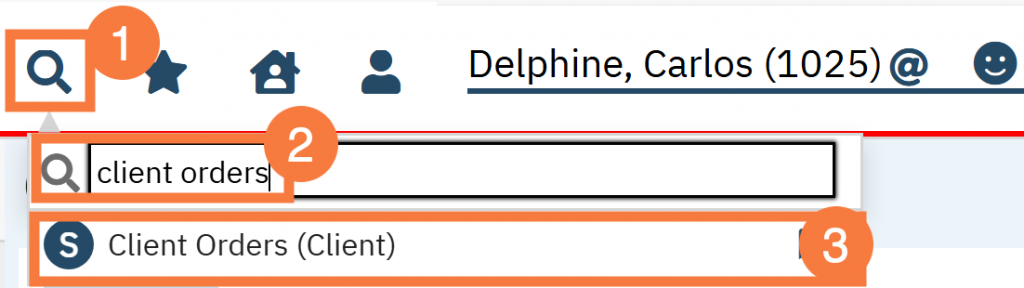
- With the client open, click the search icon.
- Type Client Orders in the search bar.
- Click to select Client Orders (Client) from the search results.
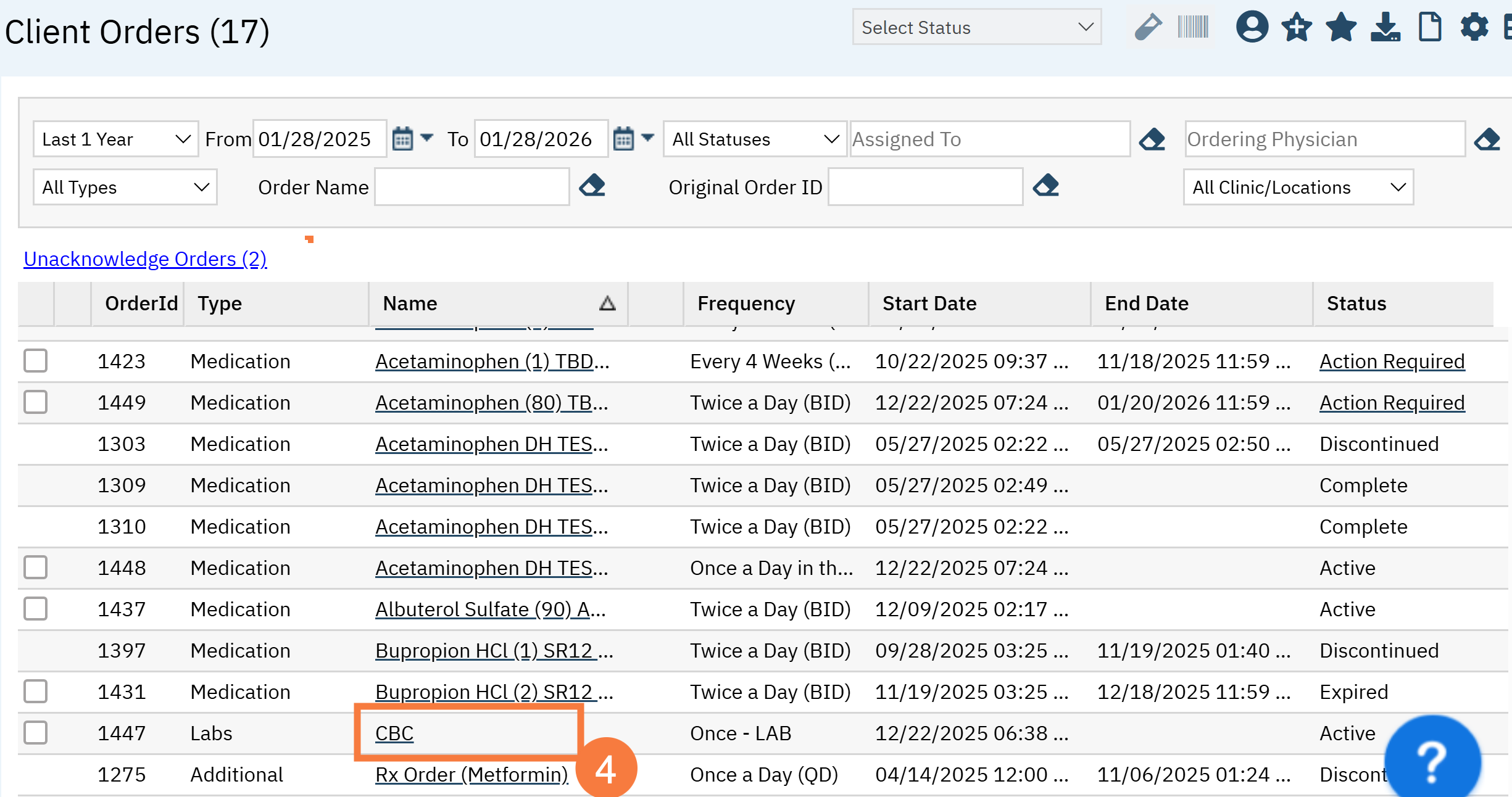
- On the client orders list page, locate the lab order the results are for. Click the hyperlink for the name of the lab.
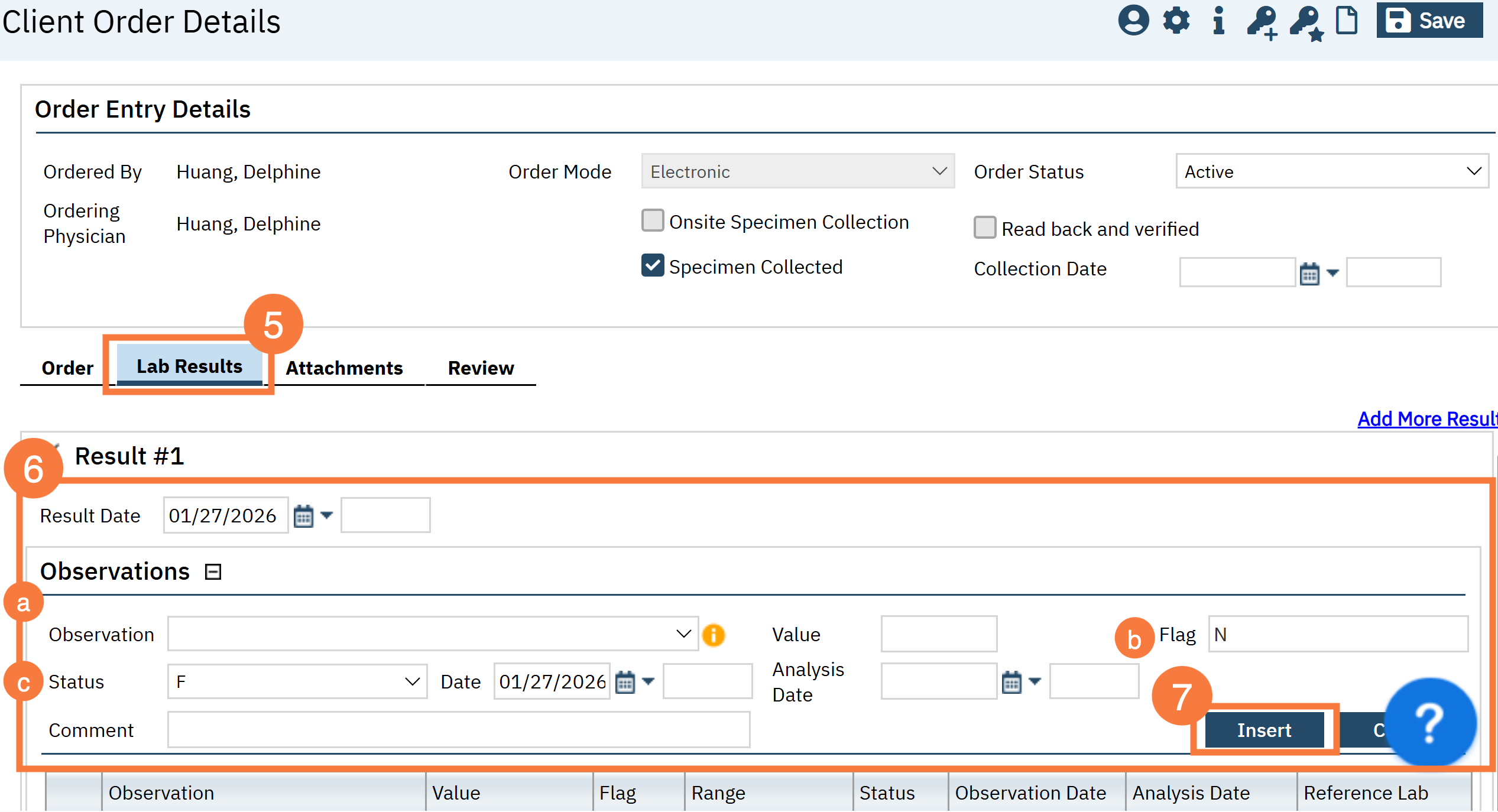
- On the Orders Orders Details screen, click the Lab Results tab.
- Complete the relevant fields.
- Note: Since you already have an interface, the associated components of that specific lab result will appear under observation.
- In the Flag field, use the following values:
Value
Use Abbreviation for Notation
Normal
N
High
H
Low
L
- In the Status field, select from the following choices:
Value
Description
C
Record coming over is a correction and thus replaces a final result
D
Deletes the OBX record
F
Final results; Can only be changed with a corrected result
I
Specimen received and in lab; results pending
M
Corrected, not final. A result under an order that has not yet been finalized has been corrected.
N
Not asked; used to affirmatively document that the observation identified in the OBX was not sought when the universal service ID in OBR-4 implies that it would be sought
O
Order detail description only (no result)
P
Preliminary results
R
Results entered/stored – not verified
S
Partial results
X
Order detail description only (no result)
U
Results status change to final without retransmitting results already sent as preliminary (e.g. Radiology changes status from preliminary to final)
W
Post original as wrong (e.g. transmitted for wrong patient)
- Click Insert.
Reference: https://www.hl7.eu/HL7v2x/v251/hl7v251tab0085.htm
- Click Save.